
-
 7 min
Build an AI recruiter that recruits like you
For everyone
-
 4 min
Talent Search, the deep dive
For everyone
-
 4 min
Now playing
Automated interview scheduling
For everyone
-
 4 min
Labor market data for manufacturers
For manufacturers
-
 5 min
Labor market intelligence for staffing firms
For staffing firms
The fastest way to lose a good candidate is days of back and forth over a time to talk. Your AI recruiter can book the interview by text as soon as someone qualifies. Interview scheduling is a Gold feature: set it up once, then turn it on for each job you want it on.
1. Connect your calendar
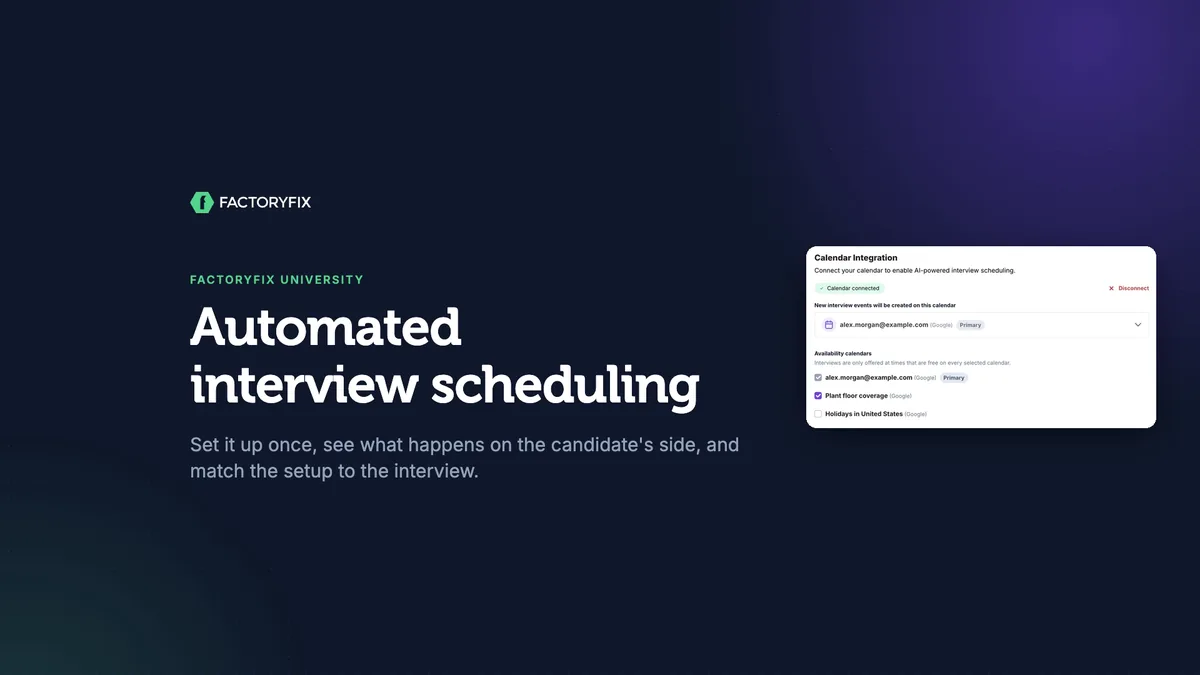
- Go to Settings → Profile → Calendar Integration and click Connect your calendar. Google, Outlook and Apple calendars all work.
- Choose the calendar under New interview events will be created on this calendar.
- Under Availability calendars, check every calendar that should count as busy. Interviews are only offered at times that are free on every calendar you select.
Without a connected calendar, your AI recruiter can't see when you're busy, so connect yours before you let it book on its own.
2. Turn it on for a job
On the job's setup page, under Do you want your AI recruiter to schedule interviews for you?, choose Yes, schedule interviews. Then set:
| Setting | Options |
|---|---|
| Who gets an interview | Cast a wider net (3★+), Focus on strong matches (4★+, the default), or Only exceptional candidates (4.5★+) |
| Interview team | Anyone else who should join. Their connected calendars count too. |
| Duration and type | 15, 30 or 60 minutes. Phone call, video call, or on-site interview. |
| Additional details | What the candidate should know. These are shared with the candidate. |
| Scheduling preferences | Rules such as "No Fridays" or "Mornings only" |
| Require your confirmation before finalizing | On: you get an email to approve each time first. Off: interviews are booked straight to your calendar. |
What the candidate experiences
- Times: when someone qualifies, your AI recruiter texts them two or three open times, with the time zone. It offers weekday business hours and never the same day, unless your preferences say otherwise.
- Booking: they pick a time. If you require confirmation, you approve it first. Then your AI recruiter confirms with the candidate, the invite goes on your calendar, and the candidate moves to Interview. For video calls, a fully connected calendar adds a Meet or Teams link automatically; otherwise, paste your own meeting link (Zoom, Meet, Teams and others work).
- Reminder: two hours before the interview, the candidate gets a reminder text.
- Follow-ups: if they go quiet before picking a time, your AI recruiter follows up, based on its persistence setting.
Match the setup to the interview
| Interview | Setup |
|---|---|
| High-volume hourly jobs | Book at 4★ and up, connect your calendar, and turn off confirmation, so qualified people get booked without waiting on you. |
| Hiring manager interviews | Add the hiring manager to the interview team so their connected calendar counts too, and keep confirmation on. |
| On-site interviews | Choose On-site interview and add the location. Put your interview windows in scheduling preferences and parking or gate instructions in the details. |
| Staffing firms | Add your client's hiring manager by email. They get the invite, but their calendar isn't checked, so put their available times in your preferences. |
Things that quietly stop scheduling
- The assigned recruiter matters. Their calendar sets the times and they get the approval emails. A job with no one assigned won't book interviews at all.
- Messaging a candidate yourself stops your AI recruiter's scheduling with them.
- Changes are yours. Your AI recruiter can't reschedule or cancel an interview.
- Turning scheduling off ends any scheduling in progress, without a message to the candidate.
Before you turn it on
- Is your calendar connected?
- Is someone assigned to the job?
- Do you want to approve each booking?
- Does the candidate know where to go, and when?
Chapters
- 0:00 Introduction
- 0:12 Why automate it
- 0:30 Connect your calendar
- 0:57 Turn it on for a job
- 1:37 The candidate's side
- 2:18 Match the setup to the interview
- 3:00 What quietly stops scheduling
- 3:26 Before you turn it on
Transcript
Automated interview scheduling. In about four minutes, you'll learn how to set it up once, what happens on the candidate's side, and how to set it up for different kinds of interviews.
The fastest way to lose a good candidate is days of back and forth over a time to talk. Your AI recruiter can book the interview by text, as soon as someone qualifies. Interview scheduling is a Gold feature. Set it up once, then turn it on for each job you want it on.
Start in Settings, under Profile. In Calendar Integration, click Connect your calendar. Google, Outlook, and Apple calendars all work. Once it's connected, choose the calendar new interviews go on, and which calendars count as busy. It only offers times that are free on every calendar you select. Without a connected calendar, your AI recruiter can't see when you're busy. So connect yours before you let it book on its own.
Then open a job's setup page. Find the question about scheduling interviews, and choose Yes, schedule interviews. Pick who gets an interview. Four stars and up is the default. Three stars casts a wider net, and four and a half books only exceptional candidates. Add anyone else who should join, then set how long the interview runs, and whether it's a phone call, a video call, or on site. Add any details the candidate should know, and your scheduling preferences, like no Fridays. And decide whether to approve each booking. With Require your confirmation on, you get an email to approve the time first. Turn it off, and it books straight to your calendar.
Here's the candidate's side. When someone qualifies, your AI recruiter texts them two or three open times, with the time zone. It offers weekday business hours, and never the same day, unless your preferences say otherwise. They pick one. If you require confirmation, you approve the time first. Then it confirms with the candidate, the invite goes on your calendar, and the candidate moves to Interview. For video calls, a fully connected calendar adds a Meet or Teams link, or you can paste your own, like Zoom. Two hours before, it texts them a reminder. And if they go quiet before picking a time, it follows up, based on your AI recruiter's persistence.
Now, four setups for different interviews. For high volume hourly jobs, book interviews at four stars and up, connect your calendar, and turn off confirmation, so qualified people get booked without waiting on you. For hiring manager interviews, add the hiring manager to the interview team, so their connected calendar counts too, and keep confirmation on. For on-site interviews, choose on site, add the location, put your interview windows in scheduling preferences, and add parking or gate instructions to the details. And for staffing firms, add your client's hiring manager by email. They get the invite, but their calendar isn't checked, so put their available times in your preferences.
A few things to watch. The recruiter assigned to the job is the one whose calendar sets the times, and who gets the approval emails. A job with no one assigned won't book interviews at all. If you message a candidate yourself, your AI recruiter stops scheduling with them. It can't reschedule or cancel, so handle changes yourself. And turning scheduling off ends any that's in progress, without a message to the candidate.
Before you turn it on, check four things. Is your calendar connected? Is someone assigned to the job? Do you want to approve each booking? And does the candidate know where to go, and when? Let your AI recruiter book the interview, and spend your time on the conversation.
That's this session of FactoryFix University. Find more sessions in the help center.