
Effectively managing your candidate pipeline is key to hiring success. This guide covers how to find, sort, and take action on candidates within FactoryFix.
Navigating Your Job Pipelines
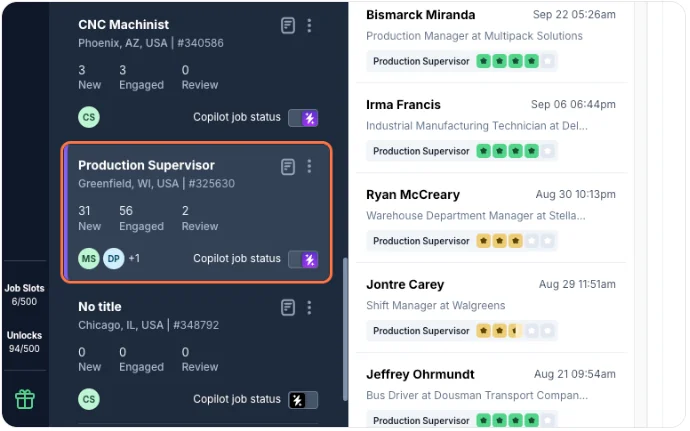
- Start in the Manage Jobs tab, which displays all your job postings.
- Click on a job to view its specific candidate pipeline. You can see the number of candidates in each stage directly from the job list.
Understanding Pipeline Stages
- New: Where all new applicants and manually added candidates land. If automated screening is on, your AI recruiter engages them here.
- Engaged: Candidates who have successfully completed the AI recruiter's screening conversation. This is your primary queue of vetted candidates to review.
- Sourcing: Passive candidates your AI recruiter has contacted but who have not yet completed the initial screening.
- Reviewed, Interview, Offer, Hired: Manual stages to track candidates through your hiring process. Keeping these updated is crucial for accurate analytics.
- Rejected: For candidates who are not moving forward.
When a candidate with a 3+ star score reaches Engaged, the job's Owner and Watchers get an email with a downloadable PDF of the candidate's profile, including the AI recruiter's score and assessment, the screening conversation, and the resume. You can review or forward it without opening FactoryFix.
Understanding Candidate-Source Badges
A badge beside the candidate shows how that person entered the job:
- Applicant: The candidate entered as a FactoryFix applicant, including candidates uploaded as applicants or added through a job's intake email.
- AI Sourced: Your AI recruiter found the candidate in the FactoryFix talent pool and started outreach for the job.
- Sourced: Someone on your team found the candidate, for example in Talent Search, or uploaded them to contact as a prospect.
- ATS name, such as Greenhouse or Bullhorn: The application was imported from the connected ATS for an account with inbound candidate sync enabled.
The badge describes the source for the current job. The same candidate can have a different source on another job.
Filtering and Sorting Candidates
Once inside a job's pipeline, use these tools to find the most relevant candidates quickly:
- Filter by Stage: Click on the stage names (New, Engaged, etc.) at the top to focus on that group.
- Sort Candidates: Use the dropdown menu to sort applicants by:
- Most recent message
- Applicant score (the AI recruiter's 1-5 star rating)
- Date of application
- Quick Filters: Check the boxes for "My conversations" (to see only candidates you've messaged) or "Unreads only" (to see conversations needing a reply).
- Candidate Source: In the filter menu, choose one or more of Applicant, AI Sourced, Sourced, and From ATS to work those groups separately. The filter button shows a purple badge while a source filter is on, and Clear all filters resets it.
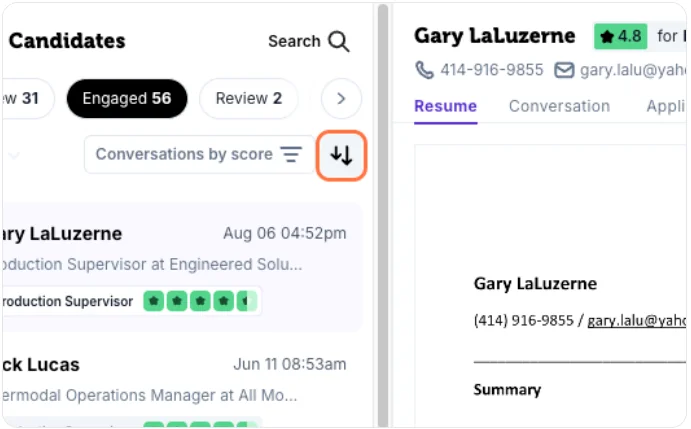
As you review candidates, you'll notice unviewed applicants appear in bold. Once you click on a candidate's profile, the text will fade slightly for you. This viewed status is unique to each user, so the candidate will remain bold for your teammates until they review the profile themselves. This makes it easy for the whole team to see at a glance which applicants still need to be reviewed.
Updating Candidate Status
Keep your pipeline organized by updating candidate statuses as they progress.
- Individually: From a candidate's profile, use the status dropdown in the top right corner to move them to a new stage.
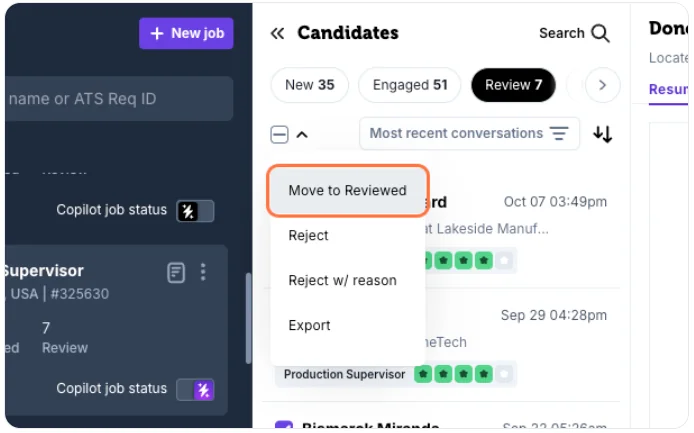
- In Bulk: From the pipeline list, select multiple candidates using the checkboxes. A bulk actions menu will appear, allowing you to move them all to a new stage at once (e.g., move all to "Reviewed" or "Rejected"). Choose Export from the same menu to download the selected candidates as an Excel file.
Finding Any Candidate Quickly
Need to find someone regardless of what job they applied to? Use the search in Manage Jobs to find candidates across every job and stage by name, email, or phone number. Results show each job and stage, and clicking one takes you straight to that conversation. You can also use the Candidate Archive (accessible from the left navigation menu) to search your entire candidate database.
Need to stop all contact with a candidate? See Mark a candidate Do Not Contact.