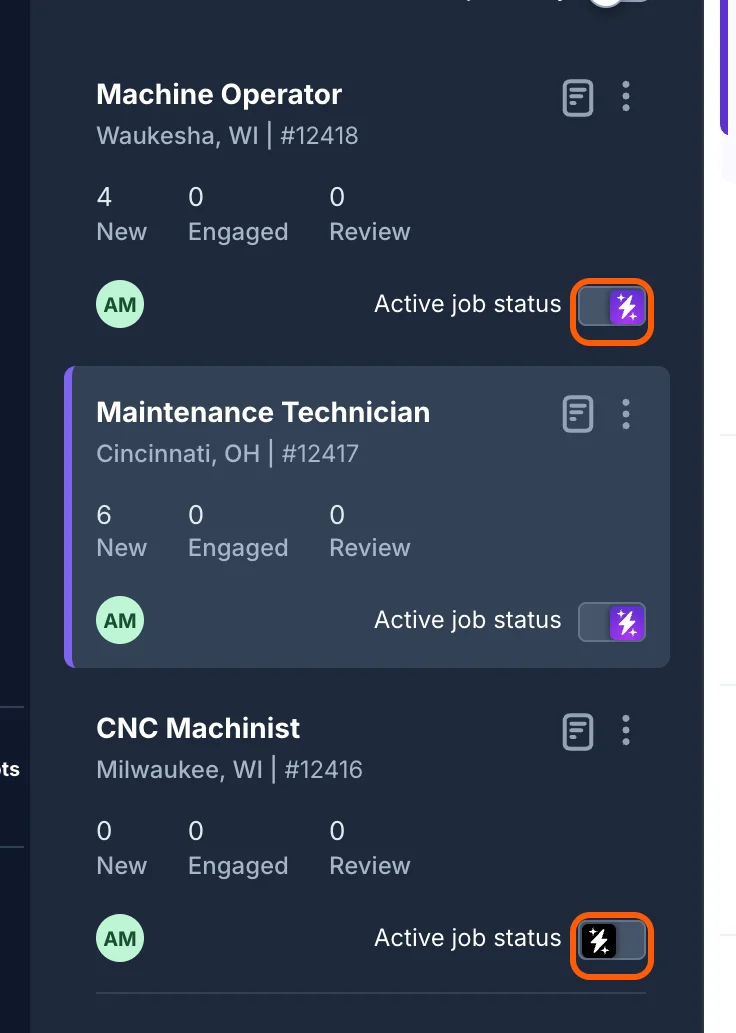
The Manage Jobs tab is your central hub for overseeing all your job postings. Using the available filters and sorting options allows you to quickly find the information you need.
How to View and Filter Your Jobs
Click the Manage Jobs tab icon from the main navigation menu.
By default, you'll see a list of your jobs. You can use the quick filters at the top to:
- Search for a specific job by title.
- Toggle between "My jobs" (jobs you own or are watching) and "All jobs".
- Toggle to show only jobs where an AI recruiter is active.
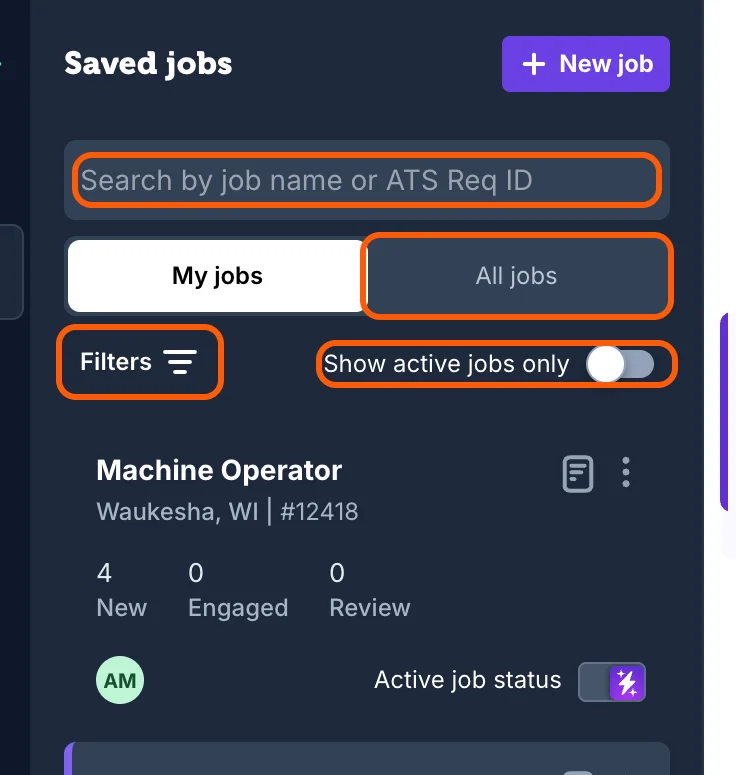
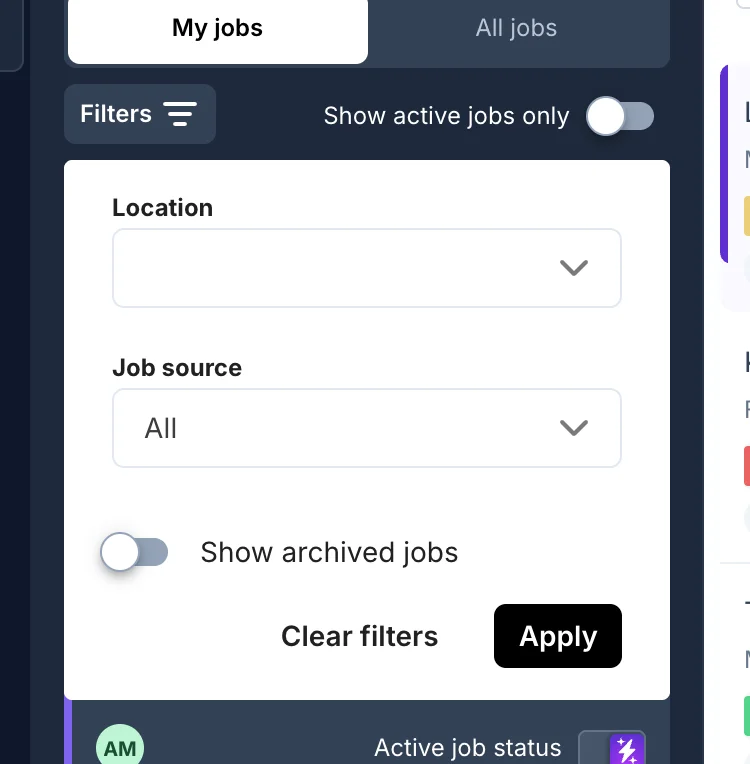
For more advanced filtering, click the Filters button. Here you can filter by:
- Team: View jobs assigned to specific team members.
- Location: Narrow down by job location.
- Job source: Show only jobs synced from your ATS, or those created manually.
- Show archived jobs: Toggle this on to view jobs you have previously archived.
Identifying Active Jobs
You can quickly see which jobs have an active AI recruiter working on them by looking at the job status toggle on the job card.
- A purple toggle switched to the right indicates the job is active.
- A dark toggle switched to the left indicates the job is inactive.