
If you already have candidates from referrals, career fairs, your ATS, or your own files, you can add them directly to a job by uploading their resumes. FactoryFix will process the resumes and place candidates into the right stage so your AI recruiter can take it from there.
Where to find Upload candidates
You can upload resumes in three places:
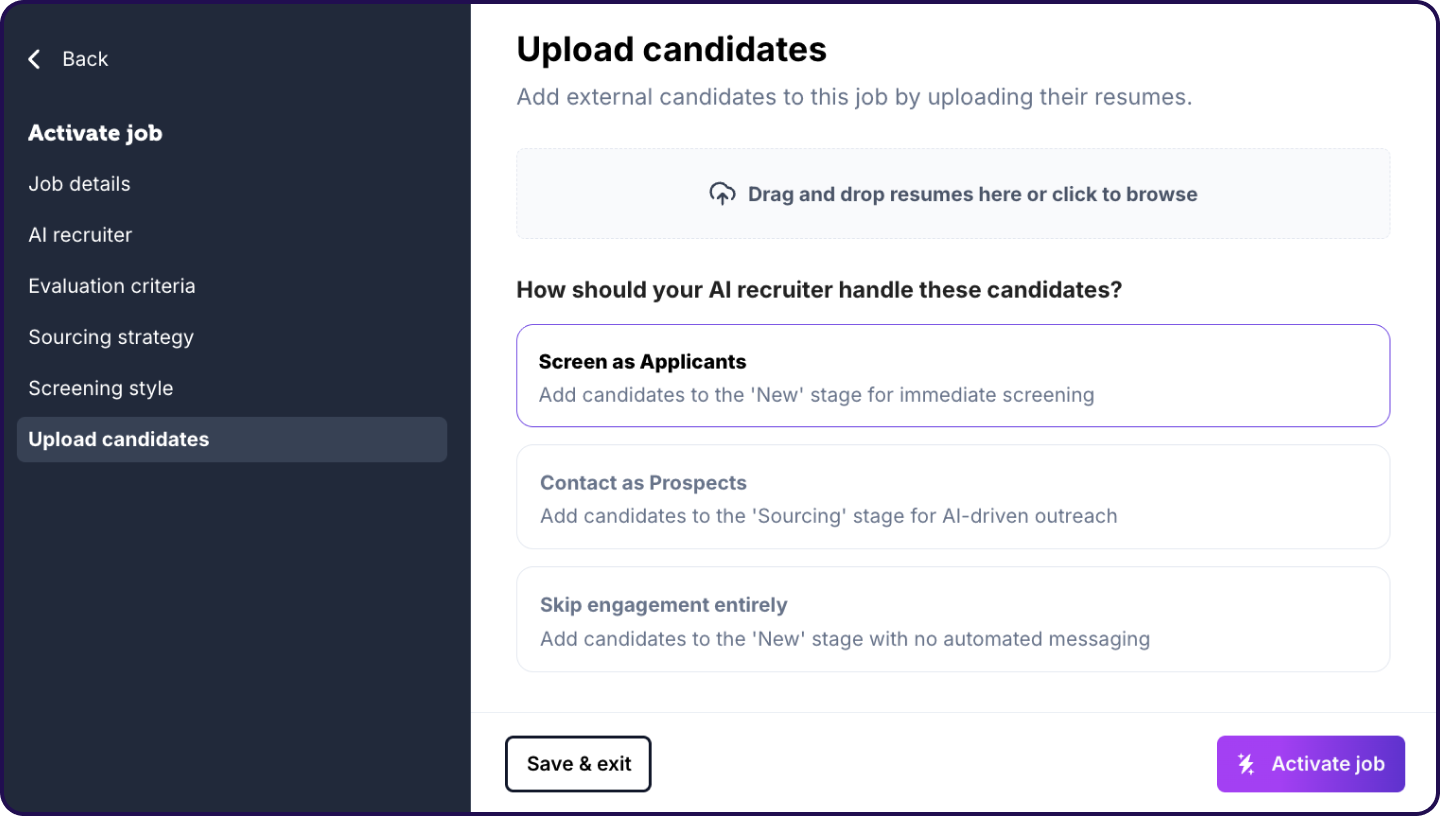
- While activating a job, use the Upload candidates section near the bottom of the setup flow. Resumes added here will be uploaded after the job is successfully activated.
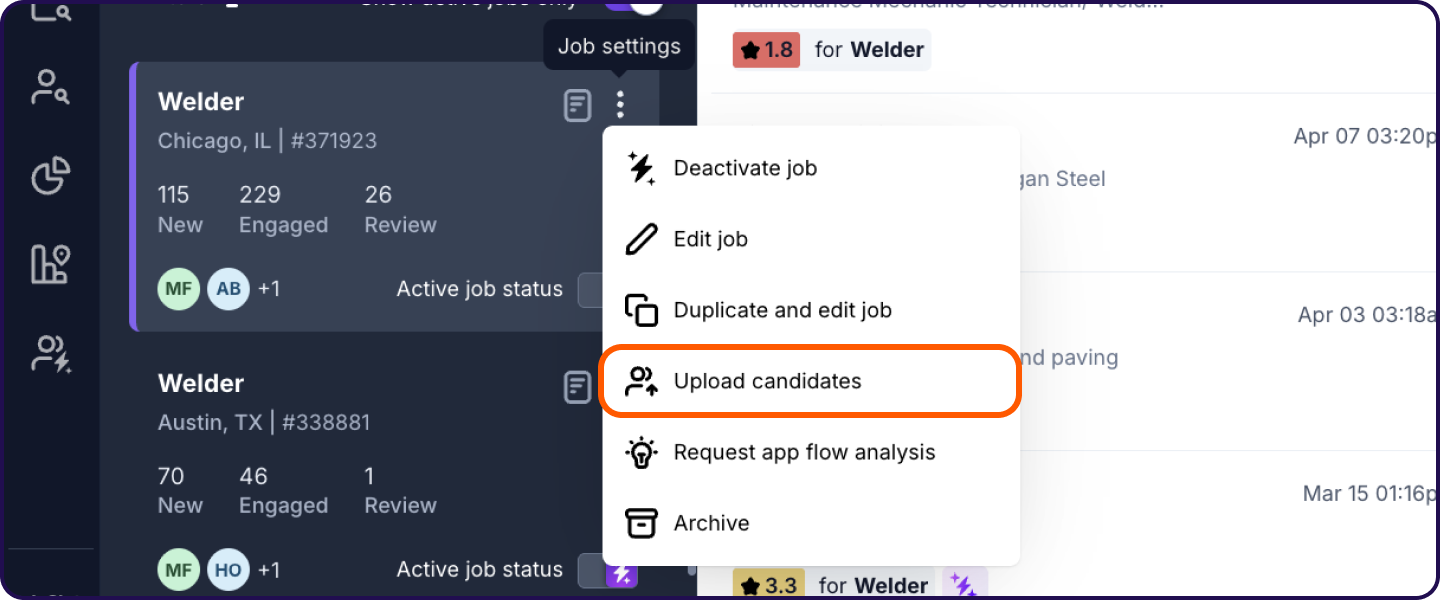
- From Manage Jobs, open the job's three-dot menu and click Upload candidates.
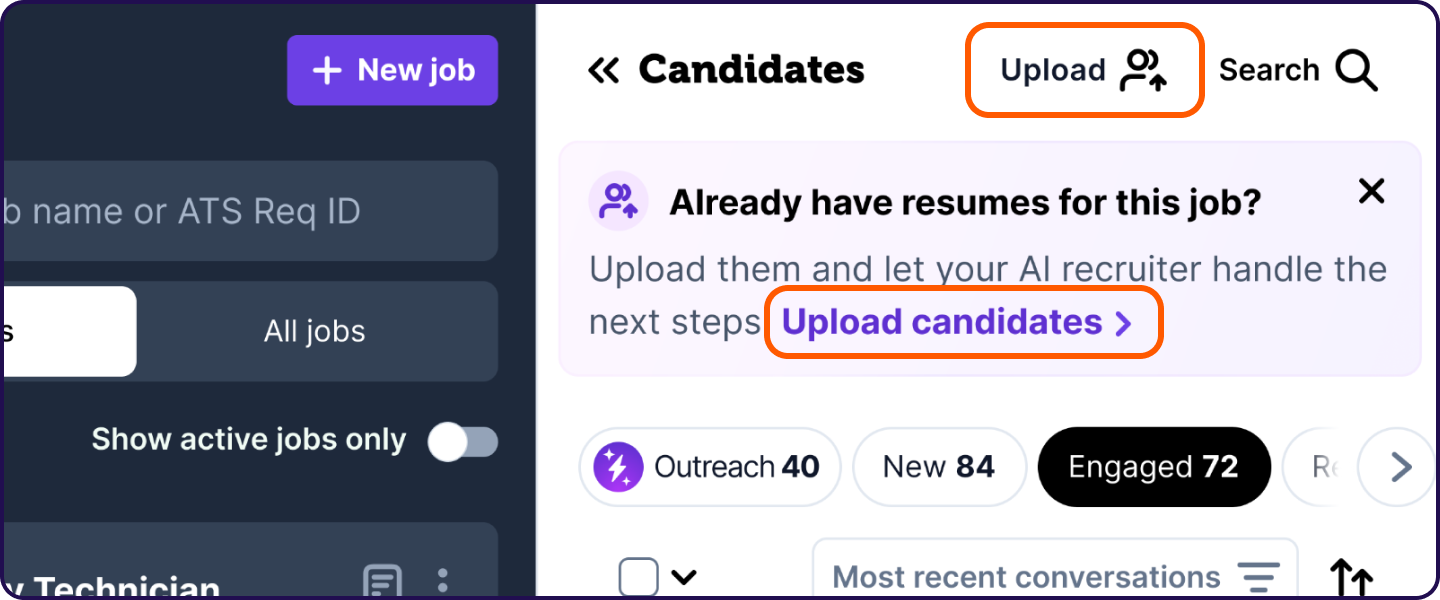
- Inside a live job's pipeline, click Upload in the header or use the Upload candidates banner if you see it.
How to upload resumes
- Open the job you want to add candidates to.
- Click Upload candidates.
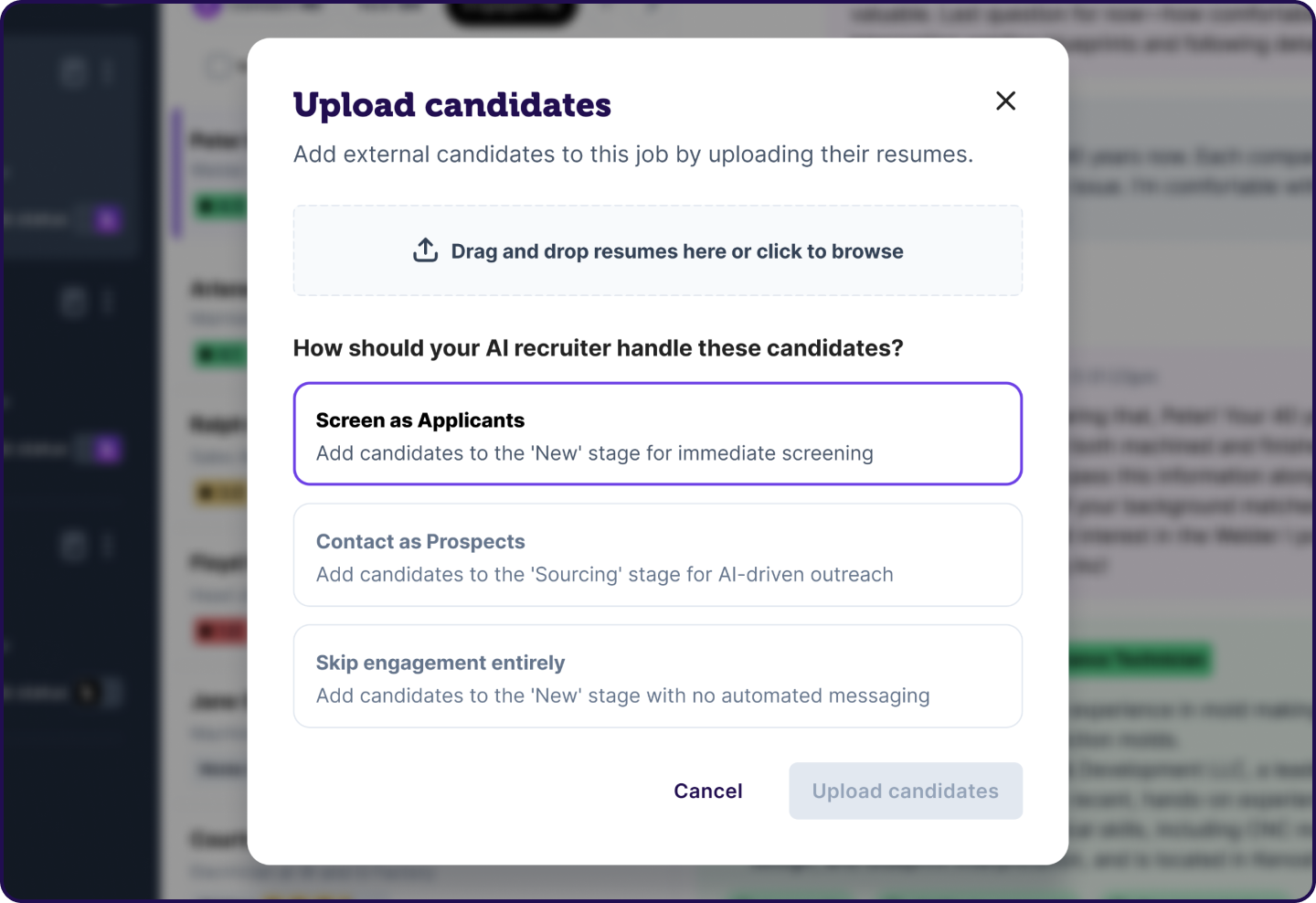
- Drag and drop one or more files, or click to browse.
- Upload resumes in one of these formats:
- DOC
- DOCX
- Choose how your AI recruiter should handle the candidates.
- Click Upload candidates.
Your resumes will start processing right away. Candidates usually appear quickly, but allow up to 24 hours for processing to complete.
Email candidates to a job
Every job also has its own intake email address, so you can add candidates by email instead of uploading files yourself.
Where to find your job's intake email address
You can find the address anywhere you can upload candidates:
- While activating a job, in the Upload candidates section near the bottom of the setup flow.
- From Manage Jobs, open the job's three-dot menu and click Upload candidates.
- Inside a live job's pipeline, click Upload in the header.
In the Upload candidates area, find Automatically forward resumes to this job via email, then click Copy to copy that job's intake address.
Ways to use the intake email address
- Paste it into an external source as a recipient. Add it as a recipient wherever an external tool or lead source sends you candidate emails, so they route straight into FactoryFix.
- Set up a mailbox rule. Create a rule in your email client that auto-forwards candidate emails — for example, from Indeed — to the intake address.
What happens when FactoryFix receives an email
When an email arrives, FactoryFix pulls the resume and adds the candidate to the job on the Screen as Applicants path (see Choose how FactoryFix should handle uploaded candidates below). If the candidate is already on the job, they won't be added twice.
Limits
- Each email can carry one candidate with a single resume attachment (PDF, DOC, or DOCX).
- Bulk digests and zip files aren't supported.
- Each intake address routes to exactly one job — copy the address from the job you want candidates added to.
- Emailed candidates always follow the Screen as Applicants path. Contact as Prospects and Skip engagement entirely aren't available for email intake — use a manual upload if you need one of those.
Choose how FactoryFix should handle uploaded candidates
When you upload resumes, you’ll choose one of three options:
Screen as Applicants
Use this when you want uploaded candidates to enter the normal applicant flow.
- Candidates are added to the New stage.
- If AI screening is turned on for the job, your AI recruiter will begin screening them there.
- This is the best option when you want uploaded candidates treated like standard applicants.
Contact as Prospects
Use this when you want your AI recruiter to proactively reach out first.
- Candidates are added to the Sourcing stage.
- Your AI recruiter begins AI-driven outreach.
- This option is only available when the job is set to Active Job Seekers + Passive Candidates.
If this option is greyed out, update the job’s sourcing strategy to let your AI recruiter source passive candidates.
Skip engagement entirely
Use this when you just want to add candidates without automated outreach or screening.
- Candidates are added to the New stage.
- No automated messaging is sent.
A few helpful notes
- You can upload multiple resumes at once.
- Uploading works for live, activated jobs. If the job is still being set up, add the resumes in the activation flow and they’ll upload once the job is activated.
- FactoryFix processes each resume and tries to match it to the right candidate record before adding it to the job.
- If a resume can’t be processed, the most common causes are an unsupported file, a damaged file, or a resume that doesn’t include a usable email address.
FAQ
Why don’t I see Contact as Prospects?
That option only works when the job allows your AI recruiter to source passive candidates. Edit the job and choose Active Job Seekers + Passive Candidates in the sourcing strategy section.
Where will uploaded candidates show up?
- Screen as Applicants → New
- Contact as Prospects → Sourcing
- Skip engagement entirely → New
How long does processing take?
Whether resumes come in through Upload candidates or the job's intake email address, processing starts right away, but candidates may take up to 24 hours to appear in the pipeline.
Can I upload resumes for a draft or inactive job?
Not from the regular job menu or pipeline. Those upload entry points work on active jobs. If you’re still activating a job, you can stage resumes in the activation flow and they’ll be uploaded after activation succeeds.
What file types are supported?
PDF, DOC, and DOCX — for both uploaded resumes and resumes attached to emails sent to a job's intake address.
Can I email more than one candidate at once?
No. Each email can only carry one candidate with a single resume attachment. Bulk digests and zip files aren't supported, so forward or send candidate resumes one at a time.
Can I use one intake email address for multiple jobs?
No. Each intake address routes to exactly one job. To send candidates to a different job, copy that job's own address from its Upload candidates area.
Can I choose how emailed candidates are handled?
No. Candidates that come in through a job's intake email address always follow the Screen as Applicants path — added to the New stage, screened by your AI recruiter if AI screening is on. Contact as Prospects and Skip engagement entirely are only available for manual uploads.