
(Note: You must be a Company Admin to remove team members from your account.)
As your team changes, you can easily manage user access to your company's FactoryFix account. Removing a team member will immediately revoke their access to your jobs, candidates, and account settings.
Steps to Remove a Team Member
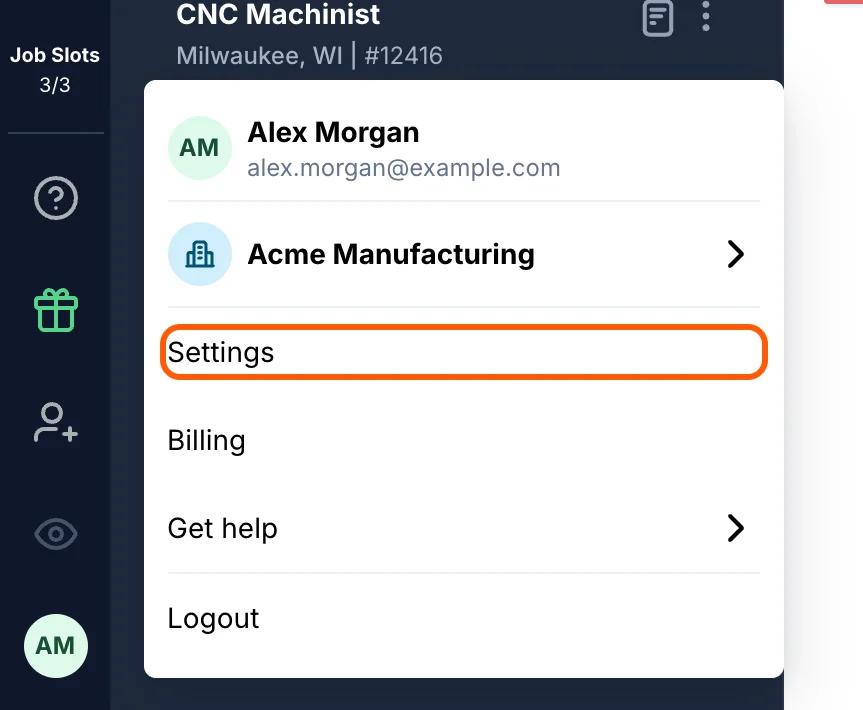
- Click on your account icon in the bottom-left corner of the screen.
- Select Settings from the menu that appears.
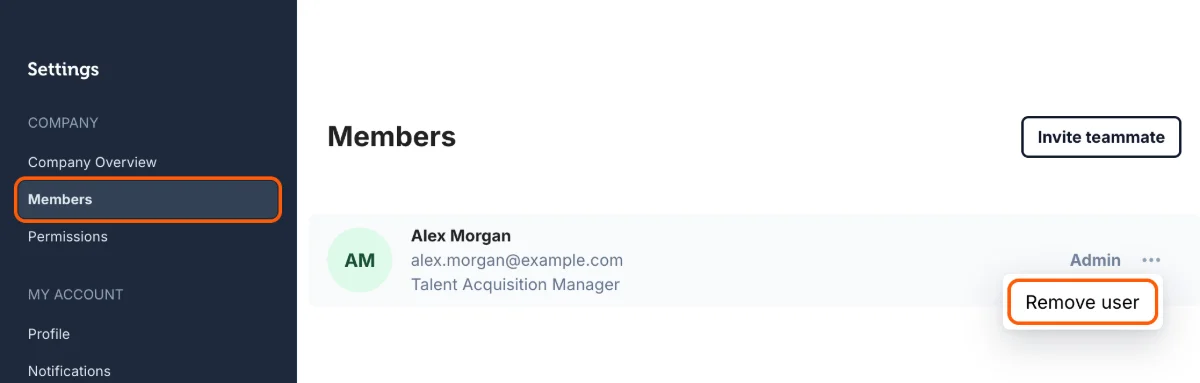
- Navigate to the Members tab to see a list of all users on your account.
- Find the team member you wish to remove from the list.
- Click the three-dot menu to the right of their name.
- Select "Remove user" and confirm your choice.
The user has now been removed from your FactoryFix account and will no longer be able to log in.
Note on Deleting vs. Removing: This process removes the user's access to your company account. If a user needs their profile completely deleted from the entire FactoryFix system for compliance reasons, please have your account administrator contact our support team.